
Player Controls (Playback, Speed, Fullscreen, etc.)
The Movie Engine player includes advanced playback controls and interactive features designed to deliver a smooth, modern OTT experience similar to Netflix or Prime Video.
These controls improve usability, accessibility, and engagement across all devices.
🎮 Core Playback Controls
Users can interact with the video player using built-in controls:
- Play / Pause video
- Seek (forward / backward)
- Volume control
- Fullscreen mode
- Playback progress bar
These controls ensure a familiar and intuitive viewing experience.
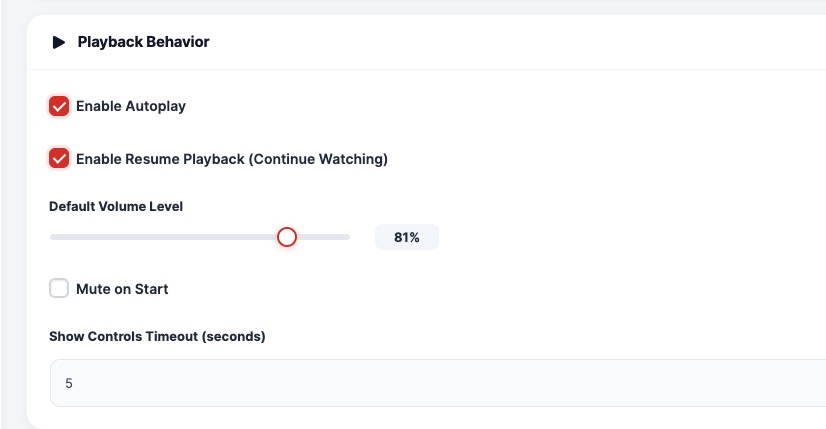
⚙️ Playback Behavior Settings
You can control how the player behaves during playback.
Available Options:
- Enable Autoplay → Automatically start video playback
- Resume Playback (Continue Watching) → Resume from last watched position
- Default Volume Level → Set initial volume (e.g., 80%)
- Mute on Start → Start video muted
- Controls Timeout → Hide controls after inactivity
🎯 Use Case:
Create a seamless user experience with minimal interaction required.
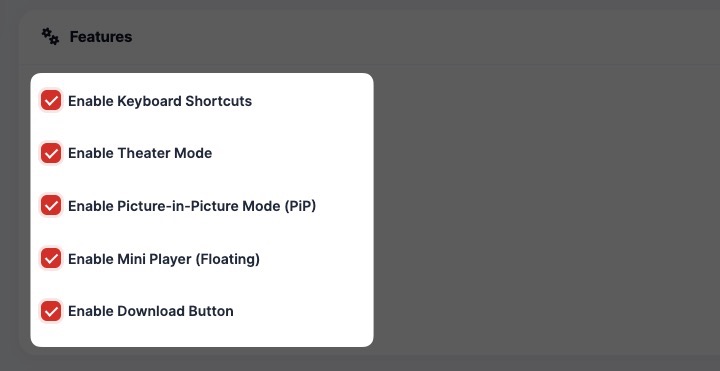
✨ Player Features
Enhance the viewing experience with advanced player features:
- Keyboard Shortcuts → Control playback via keyboard
- Theater Mode → Expand player view
- Picture-in-Picture (PiP) → Floating mini player
- Mini Player (Floating) → Continue watching while browsing
- Download Button → Allow users to download content
💡 Pro Tip:
Disable the download option for premium or protected content.
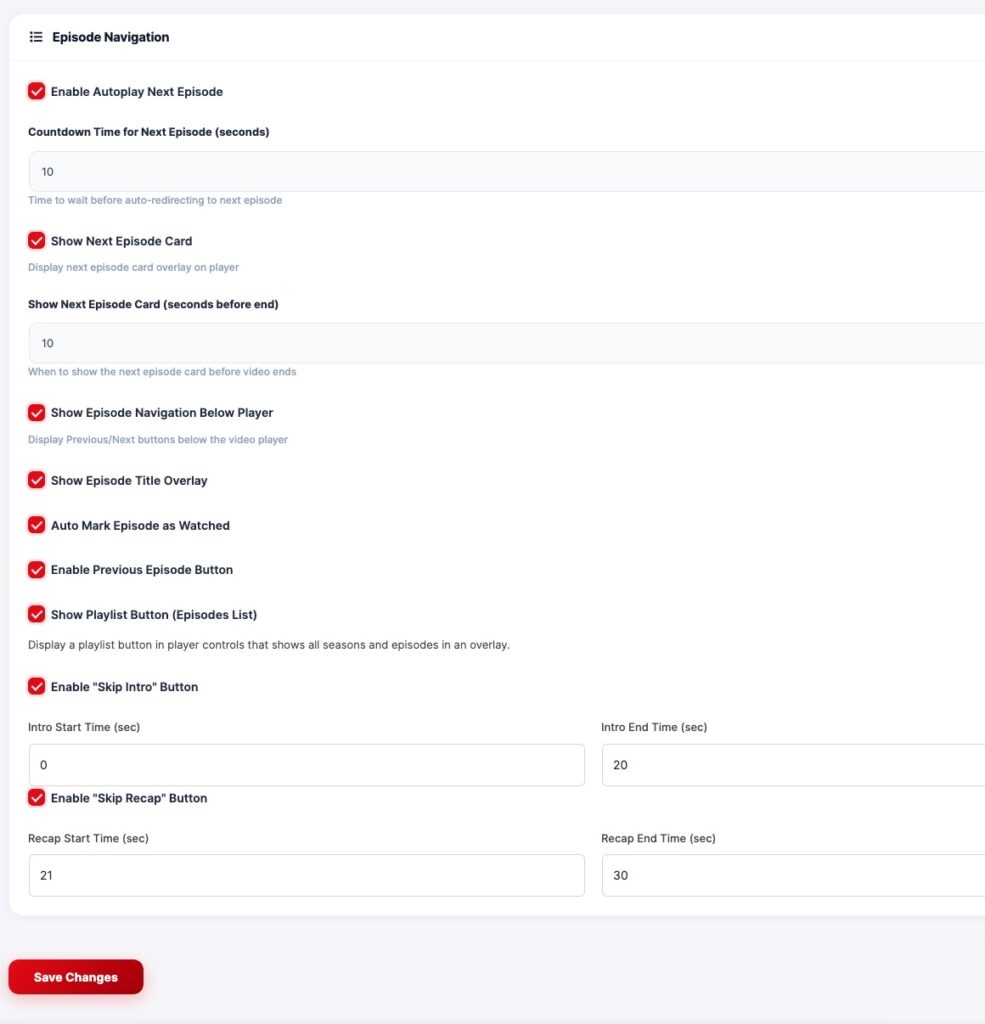
🎬 Series & Episode Controls
Special controls for TV Series and episode-based content:
- Autoplay Next Episode
- Next Episode Countdown Timer
- Show Next Episode Card Overlay
- Previous / Next Episode Navigation
- Episode Title Overlay
- Auto Mark as Watched
- Episode Playlist Button
⏩ Smart Skip Features
Improve binge-watching experience with:
- Skip Intro Button
- Skip Recap Button
Configuration:
- Set start and end time for intro/recap sections
🎯 Benefit:
Delivers a premium OTT experience like Netflix.
🎨 UI & Player Appearance
Customize how the player looks:
- Primary color (controls & progress bar)
- Replay button after video ends
- Start poster image (before playback)
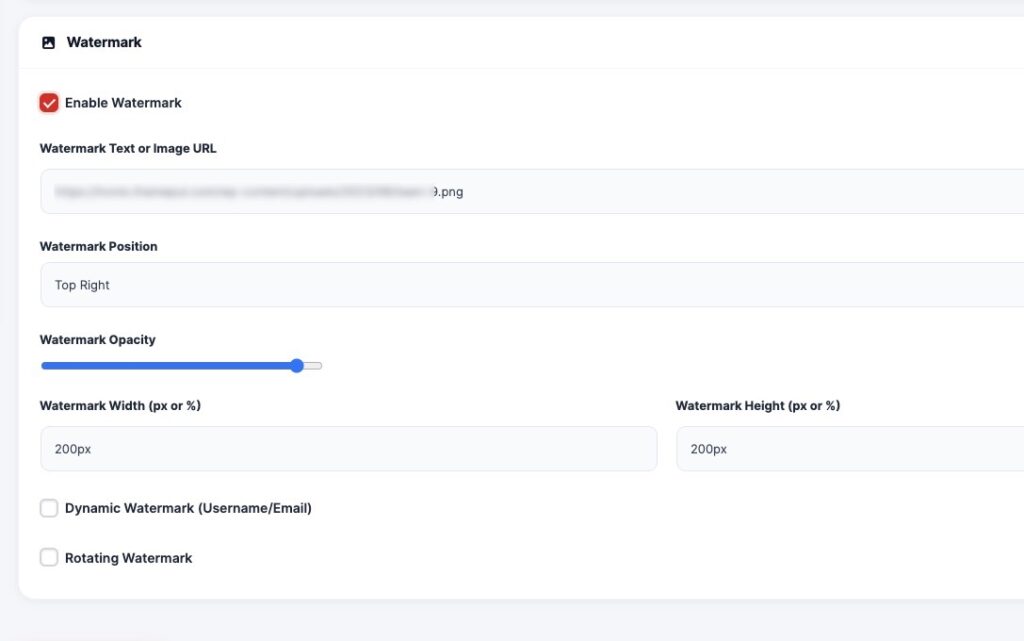
💧 Watermark Protection
Protect your content with watermark features:
- Enable watermark (text or image)
- Position (top-left, top-right, etc.)
- Opacity and size control
- Dynamic watermark (user-based)
- Rotating watermark
🎯 Use Case:
Prevent screen recording and unauthorized sharing.
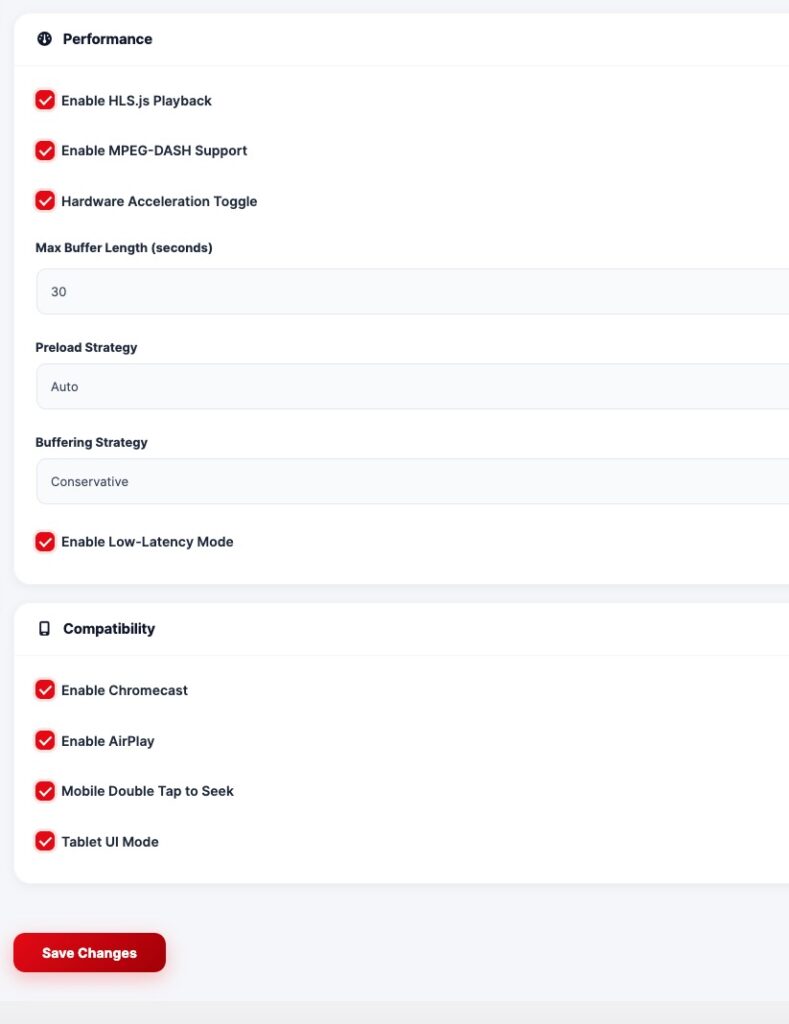
⚡ Performance Settings
Optimize playback performance:
- Enable HLS (.m3u8) playback
- Enable MPEG-DASH (.mpd) support
- Hardware acceleration toggle
- Buffer length configuration
- Preload strategy
- Low-latency mode
📱 Compatibility Features
Ensure smooth playback across devices:
- Chromecast support
- AirPlay support
- Mobile double-tap seek
- Tablet UI optimization
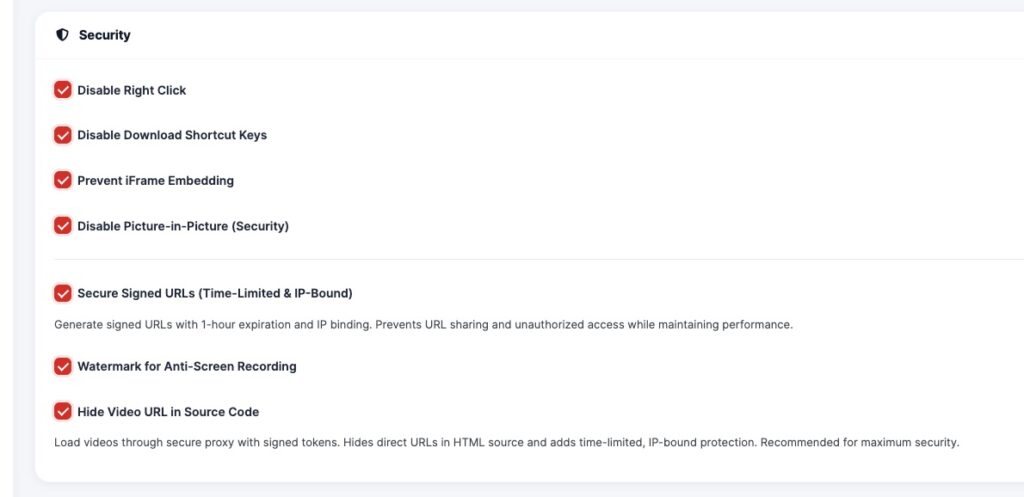
🔒 Security Controls
Protect your streaming content:
- Disable right-click
- Disable download shortcut keys
- Prevent iframe embedding
- Disable Picture-in-Picture (security mode)
- Secure signed URLs (time-limited & IP-bound)
- Hide video source URLs
🎯 Benefit:
Prevents piracy and unauthorized access.
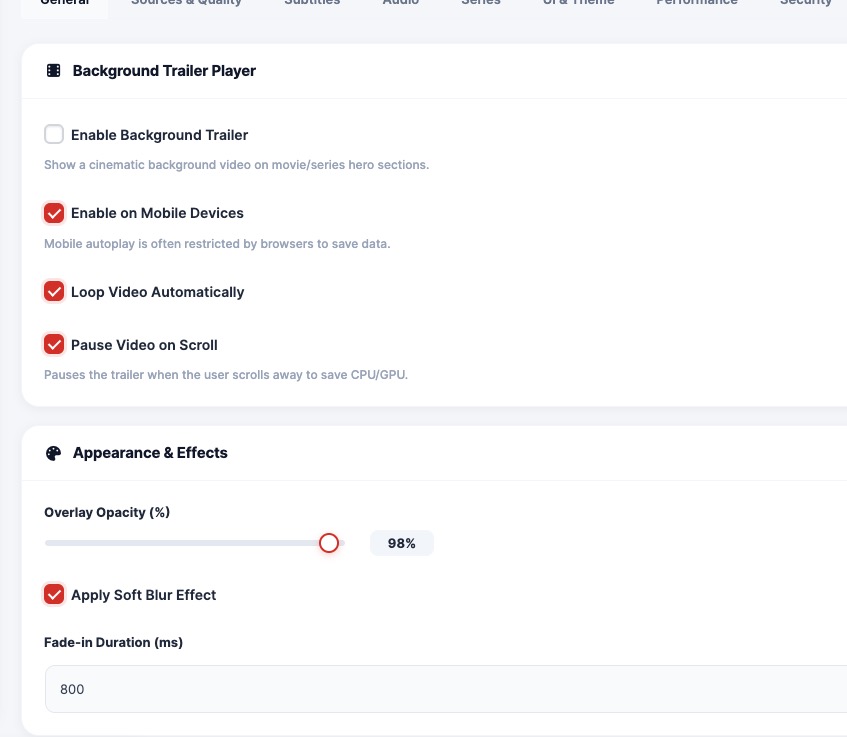
🎥 Background Trailer Settings
Add cinematic background trailers to your platform:
- Enable background trailer
- Enable autoplay on mobile
- Loop trailer automatically
- Pause on scroll
🎨 Visual Effects
Enhance UI presentation:
- Overlay opacity control
- Soft blur effect
- Fade-in animation duration
👉 Upgrade to Pro to unlock full OTT player capabilities and advanced streaming features.
