
Video Player
Subtitles Setup (Add & Manage Tracks)
Subtitles improve accessibility and user experience by allowing viewers to watch content in different languages or understand audio more clearly.
Cine Movie Engine provides both global subtitle settings and per-content subtitle management.
🌍 Subtitle Features
- Multiple subtitle tracks per movie or episode
- Language-based subtitle selection
- Default subtitle configuration
- Full styling control (color, size, background)
- Support for external subtitle files (VTT format)
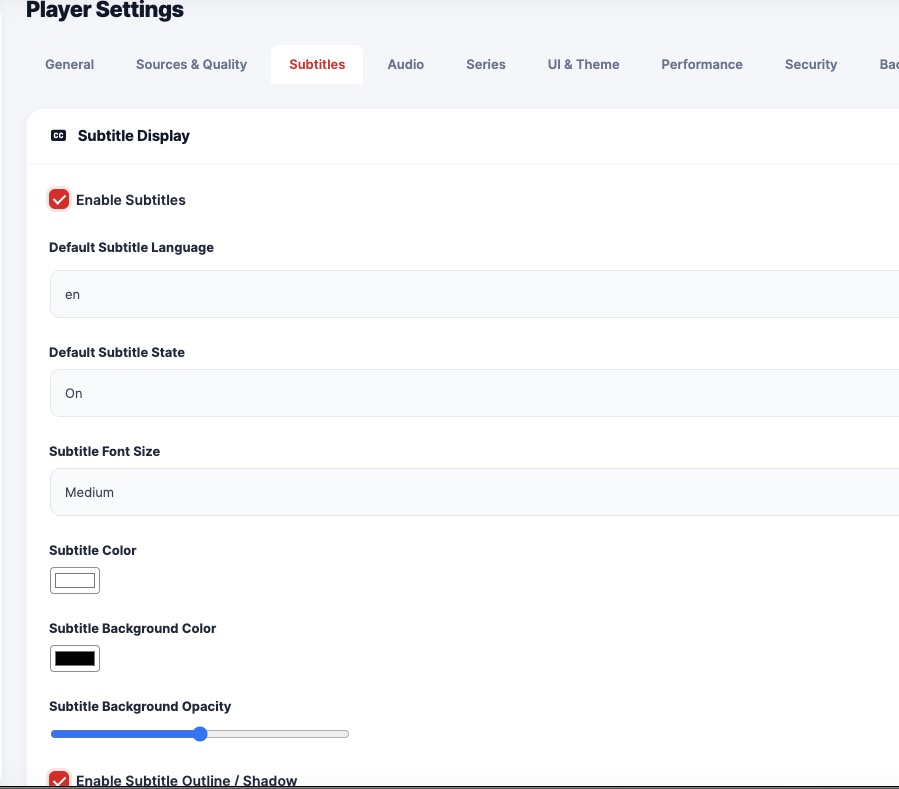
⚙️ Global Subtitle Settings (Player Settings)
You can control how subtitles behave across your entire website.
Available Options:
- Enable Subtitles → Turn subtitles on/off globally
- Default Language → Set default subtitle language (e.g.,
en) - Default State → Auto enable subtitles on playback
- Font Size → Small / Medium / Large
- Text Color → Customize subtitle text color
- Background Color → Improve readability
- Background Opacity → Adjust transparency
- Outline / Shadow → Enhance visibility
🎯 Use Case:
Set consistent subtitle styling and behavior for all users.
🎬 Adding Subtitles to Movies & Episodes
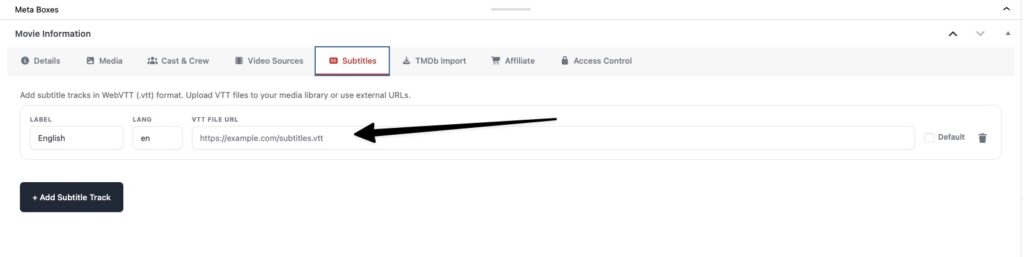
Subtitles are added individually for each movie or episode using the Post Meta Box.
Steps to Add Subtitles:
- Go to Movies / TV Series / Episode Edit Page
- Scroll to the Subtitles Tab in the Meta Box
- Click Add Subtitle Track
- Fill in the details:
- Label (e.g., English)
- Language code (e.g., en)
- Subtitle URL (VTT file)
- Mark as default (optional)
- Save
📂 Supported Format
- WebVTT (.vtt) → Recommended format for web streaming
🎯 Best Practice
- Always provide at least one subtitle (English recommended)
- Use clear labels like English, Spanish, Hindi
- Host subtitle files on a fast and reliable server
⚡ Pro Tip
Use subtitles with HLS streaming to deliver a professional OTT experience similar to Netflix or Prime Video.
